
Can a monitor be used as a TV? Yes, provided that the monitor has a compatible video input and an external device supplies the programs. Most computer monitors do not include a television tuner or smart TV operating system, so they normally need a streaming device, cable box, satellite receiver, digital TV tuner, or another video source. You may also need external speakers if the monitor has no suitable audio hardware.
Can a Monitor Be Used as a TV?
A desktop monitor can be used as a TV because both devices can display a video signal. The main difference is that a monitor usually acts only as the display. The connected source handles streaming, channel selection, or television signal processing.
Before setting it up, confirm five basics:
- Compatible video input: The monitor and source need a connection they both support.
- HDMI in most setups: HDMI is convenient because it can carry video and audio, although not every monitor has an HDMI input.
- External source: Use a streaming device, television receiver, tuner, console, or media player.
- Audio solution: Check for built in speakers, an audio output, or a way to connect separate speakers.
- Supported display mode: Set the source to a resolution and refresh rate that the monitor accepts.
What Do You Need to Use a Monitor as a TV?
The exact equipment depends on whether you want internet streaming, a paid television service, or broadcasts received by antenna.
| Device or feature | Purpose |
|---|---|
| Computer monitor | Displays the picture |
| HDMI input | Receives video and, when supported, audio from an external device |
| Streaming device | Provides Netflix, YouTube, and other streaming services |
| Cable or satellite box | Provides television service from a TV provider |
| Digital TV tuner | Receives compatible terrestrial television signals from an antenna |
| Speakers or soundbar | Provides audio when the monitor has no speakers |
| HDMI audio extractor | Optionally separates audio when the monitor cannot output it |
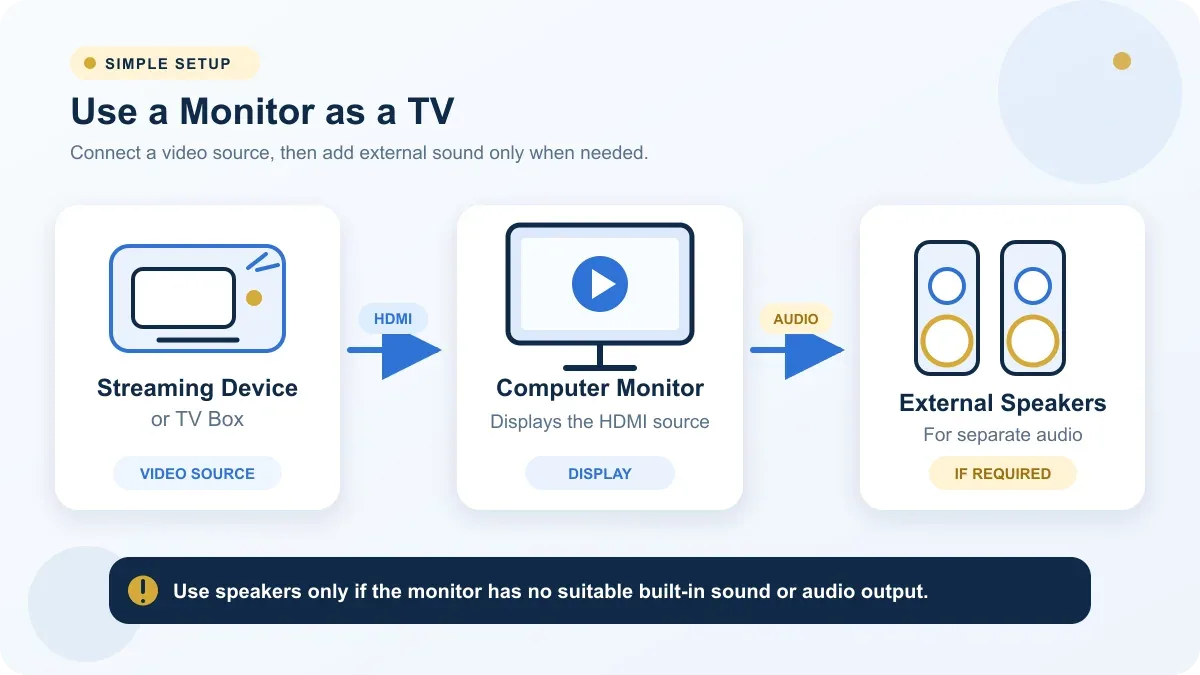
How to Turn a Computer Monitor Into a TV
Choose the method that matches the content you want to watch. In each case, the monitor remains a screen rather than becoming a television receiver by itself.
Method 1: Use a Streaming Device
A streaming stick or media box connects directly to HDMI and supplies its own apps, interface, and network connection. This is usually the easiest method if you mainly watch online services.
- Connect the streaming device to the monitor's HDMI input.
- Connect power to the streaming device.
- Select the correct HDMI input on the monitor.
- Connect the streaming device to Wi-Fi.
- Configure its audio output for the monitor, speakers, or audio extractor.
- Choose a resolution and refresh rate supported by the monitor.
If the picture does not appear, confirm the selected input and try a supported mode such as 1920 × 1080 at 60 Hz. A source remote may not control every monitor or speaker's volume.
Method 2: Connect a Cable or Satellite Box
Connect the cable box or satellite receiver to the monitor with HDMI. The receiver performs the television signal processing and channel selection; the monitor simply displays its HDMI output. In this arrangement, PC monitors can be used as a TV when connected to an external television receiver.
Check the receiver's output resolution and plan the audio connection before installation. The receiver's remote changes channels, but the monitor may still require its own controls for input selection or volume.
Method 3: Use a Digital TV Tuner
A normal computer monitor generally has no tuner. To receive over the air broadcasts, connect the TV antenna to a compatible digital TV tuner, then connect the tuner to the monitor by HDMI. The tuner scans channels, decodes the broadcast, and produces a video signal the monitor can display.
Tuner standards vary by country and region. Examples include ATSC and DVB-T or DVB-T2, but they are not globally interchangeable. Choose a tuner that matches the local broadcast system, frequency plan, and services available in your area.
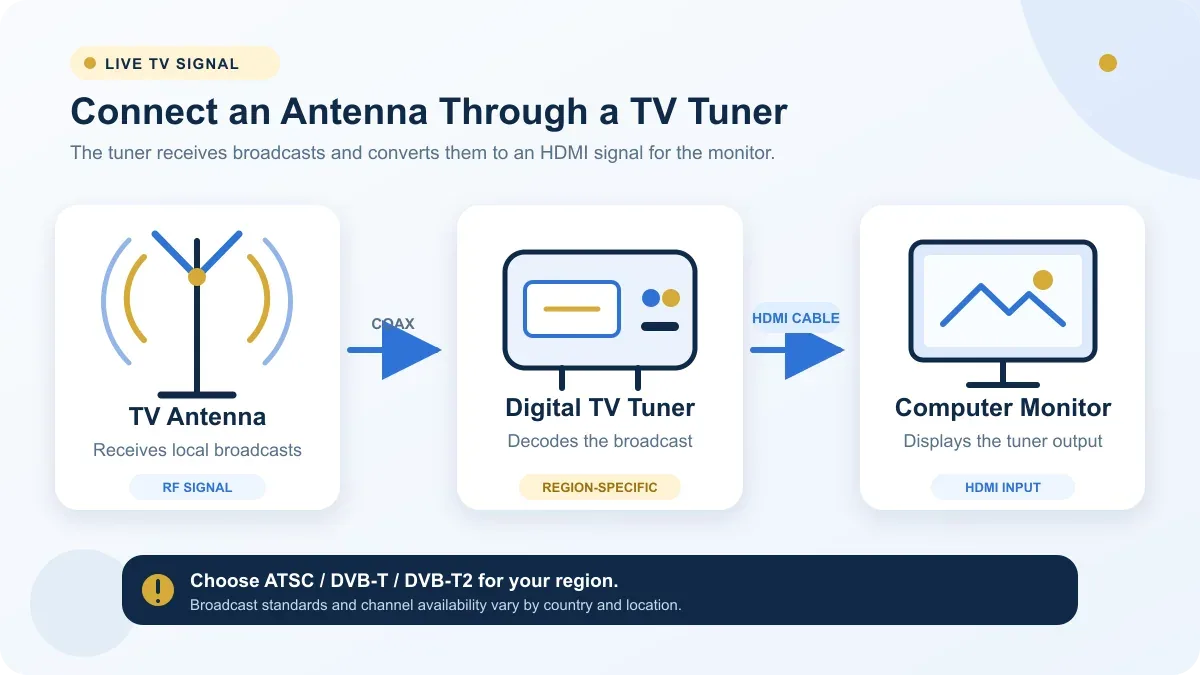
Can You Connect a TV Antenna Directly to a Monitor?
Usually no. A typical monitor has no RF antenna input, television tuner, channel scanning system, or television operating system. Even if an adapter physically fits, it does not add the electronics needed to decode a broadcast.
An external tuner solves this problem by receiving the antenna signal and converting a compatible channel into a video format, usually HDMI, that the monitor can display.
What About Sound When Using a Monitor as a TV?
HDMI can carry audio as well as video, but the way you hear that audio depends on the monitor's hardware.
Monitor With Built In Speakers
If the monitor accepts audio over HDMI and has speakers, it can usually play sound directly. Select HDMI as the audio output on the source and adjust volume on the monitor or source as supported.
Monitor With Audio Output
A monitor with a 3.5 mm audio output can often pass the incoming HDMI sound to desktop speakers, headphones, or a compatible soundbar. Verify whether the output is fixed or volume controlled because behavior differs by model.
Monitor Without Speakers or Audio Output
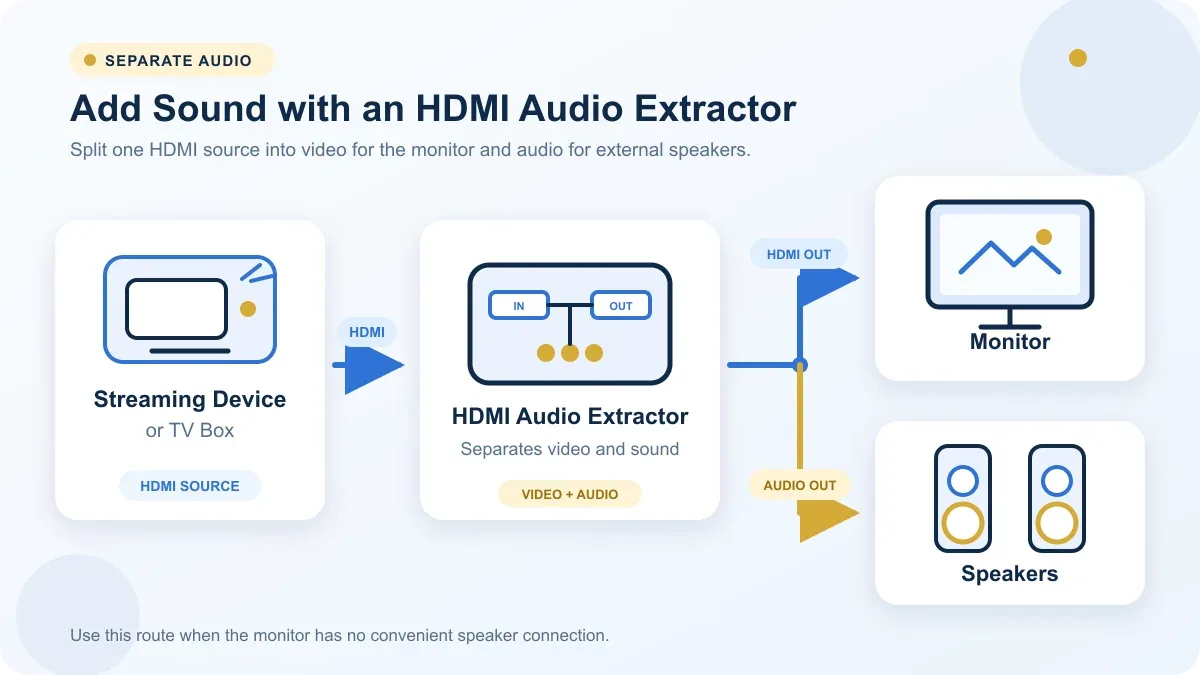
An HDMI audio extractor can separate sound from the HDMI signal before the video reaches the monitor. Audio then goes to external speakers while HDMI video continues to the display. Choose an extractor that supports the required resolution, refresh rate, and audio format; no specific product is necessary.
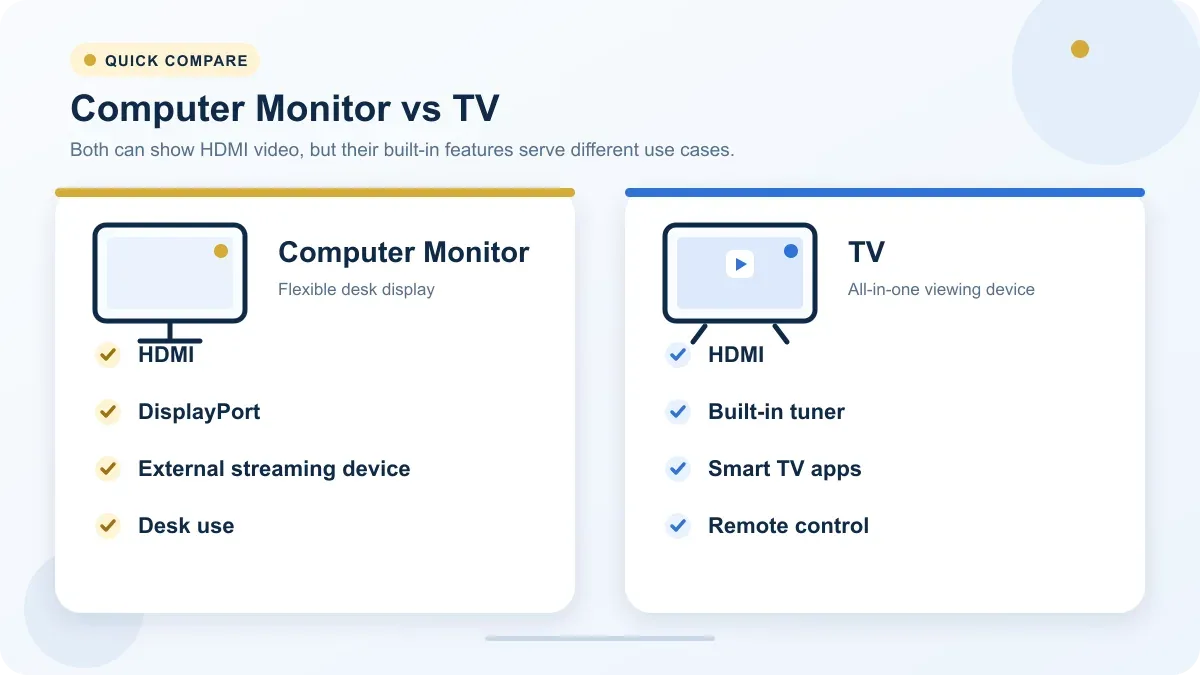
Monitor vs TV: What Is Different?
Models vary, but these typical differences explain why a monitor often needs extra equipment for television use.
| Feature | TV | Monitor |
|---|---|---|
| TV tuner | Usually included, with regional differences | Usually not included |
| Smart apps | Common | Usually not included |
| Remote control | Common | Usually not included |
| Built in speakers | Usually included | Depends on the model |
| HDMI | Common, often with several inputs | Common, but the number and version vary |
| DisplayPort | Rare | Common on many PC oriented models |
| Refresh rate options | Often focused on video and console modes | May offer more PC focused choices |
| Desk ergonomics | Often limited | Often better suited to desktop use |
| Viewing distance | Often designed for farther viewing | Often designed for a desk |
| PC connectivity | Usually adequate, depending on model | Often a primary design purpose |
Can a Gaming Monitor Be Used as a TV?
Yes. A gaming monitor can display compatible output from streaming devices, game consoles, cable boxes, TV tuners, and media players. Many gaming monitors offer HDMI, fast response, low input lag, high refresh rate options, and higher pixel density at common desk sizes.
High refresh rates are useful for compatible games, but they are not necessary for ordinary television or movie viewing. You can use the Refresh Rate Test to check the browser's reported rate and the Ghosting Test to visually inspect motion behavior. These tests do not add TV functions or diagnose every hardware issue.
Can an Office Monitor Be Used as a TV?
Yes. An office monitor with a compatible HDMI input can work with a streaming box, television receiver, or other media device. Compact office monitors can be practical for bedroom viewing, dorm rooms, small apartments, offices, and desk based TV viewing. Check speakers, ports, and stand adjustment rather than assuming every office model has the same features.
When Does Using a Monitor as a TV Make Sense?
Good Situations
This setup works well in a bedroom, dorm room, small apartment, home office, kitchen, or compact desk area where viewing distance is short. It can also be sensible as a temporary TV setup or when you already own a spare monitor and only need to add a source and audio.
Less Suitable Situations
A monitor is less convenient in a large living room or at a long viewing distance, especially if you want a large screen. A conventional TV may also be a better fit when built in streaming apps, stronger integrated speakers, simple channel controls, and a traditional remote experience are priorities.
Can You Use a Monitor as a TV Without a Computer?
Yes. A computer is not required. The monitor only needs an appropriate source, such as a streaming device, TV box, cable box, satellite receiver, game console, media player, or compatible digital television tuner. Connect the source directly, select the monitor input, and provide an audio path if needed.
Frequently Asked Questions
Can a desktop monitor be used as a TV?
Yes. A desktop monitor with a compatible video input can display content from an external streaming or television device. It may also need separate speakers.
Can PC monitors be used as a TV?
Yes. They need an external source to provide streaming, channels, or media playback because most PC monitors do not include a tuner or smart TV platform.
Can a computer monitor be used as a TV without a computer?
Yes. A streaming device, TV box, game console, cable receiver, or compatible tuner can connect directly to the monitor.
Can I watch TV on a monitor without a TV tuner?
Yes, for internet streaming and content from cable or satellite receivers. A compatible tuner is mainly needed to receive over the air broadcasts directly from an antenna.
Do I need speakers when using a monitor as a TV?
Only if the monitor lacks suitable built in speakers or an audio output. External speakers can receive sound from the monitor, source device, or an HDMI audio extractor.
Can I use a gaming monitor to watch TV?
Yes. A gaming monitor can generally display any compatible HDMI video source, including a streaming device, receiver, console, or digital TV tuner.
The Bottom Line
A monitor can work well as a TV when an external device supplies the video, tuning, or streaming functions. Before choosing the setup, check HDMI compatibility, audio, tuner requirements, screen size, and viewing distance so the monitor fits how and where you plan to watch.