
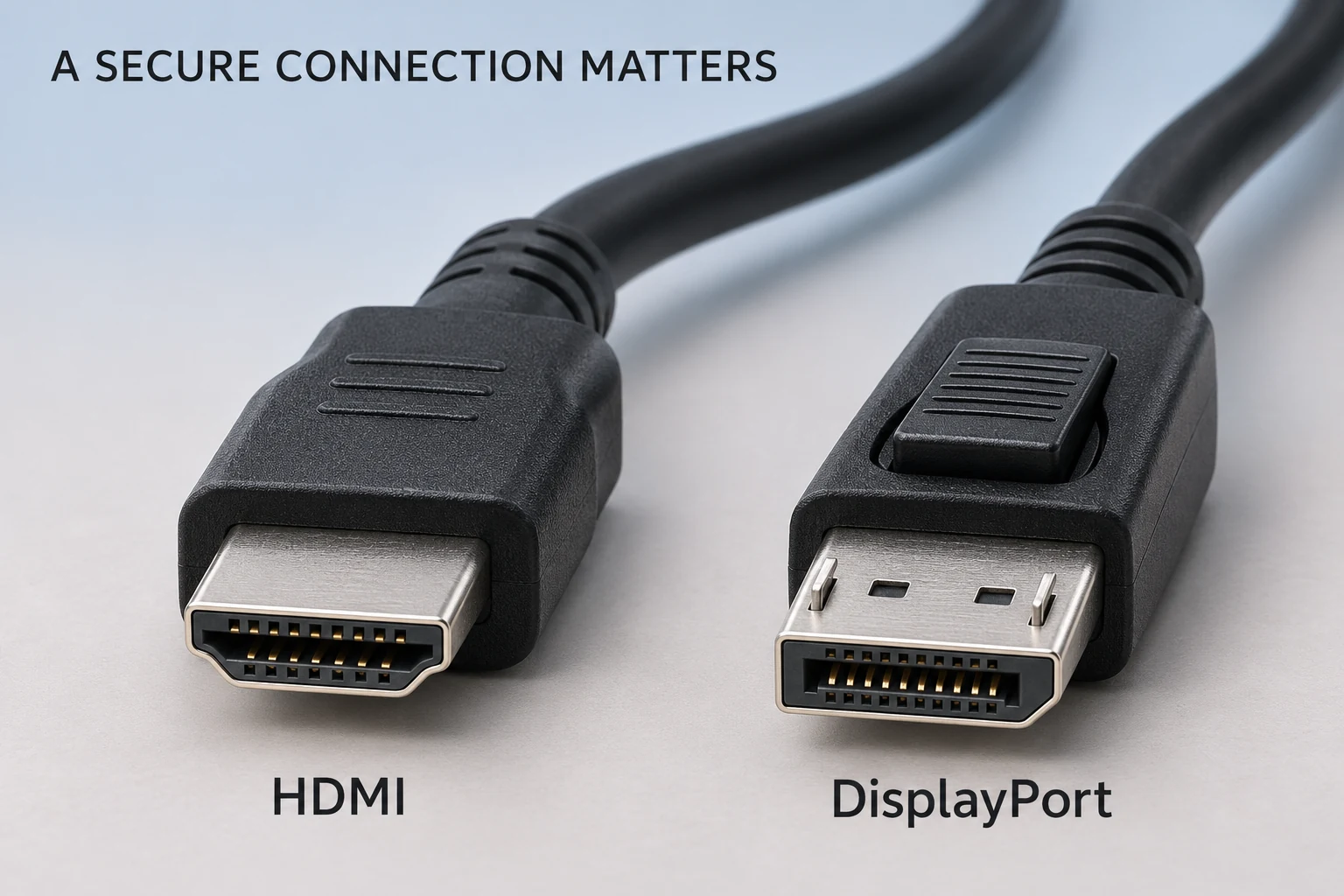
Does your screen go black when you move your monitor or touch the cable? A loose HDMI cable could be the reason. A poor connection can cause flickering, sound that cuts out, or a “No Signal” message. Before you replace the monitor, check the cable.
Why does an HDMI cable come loose?
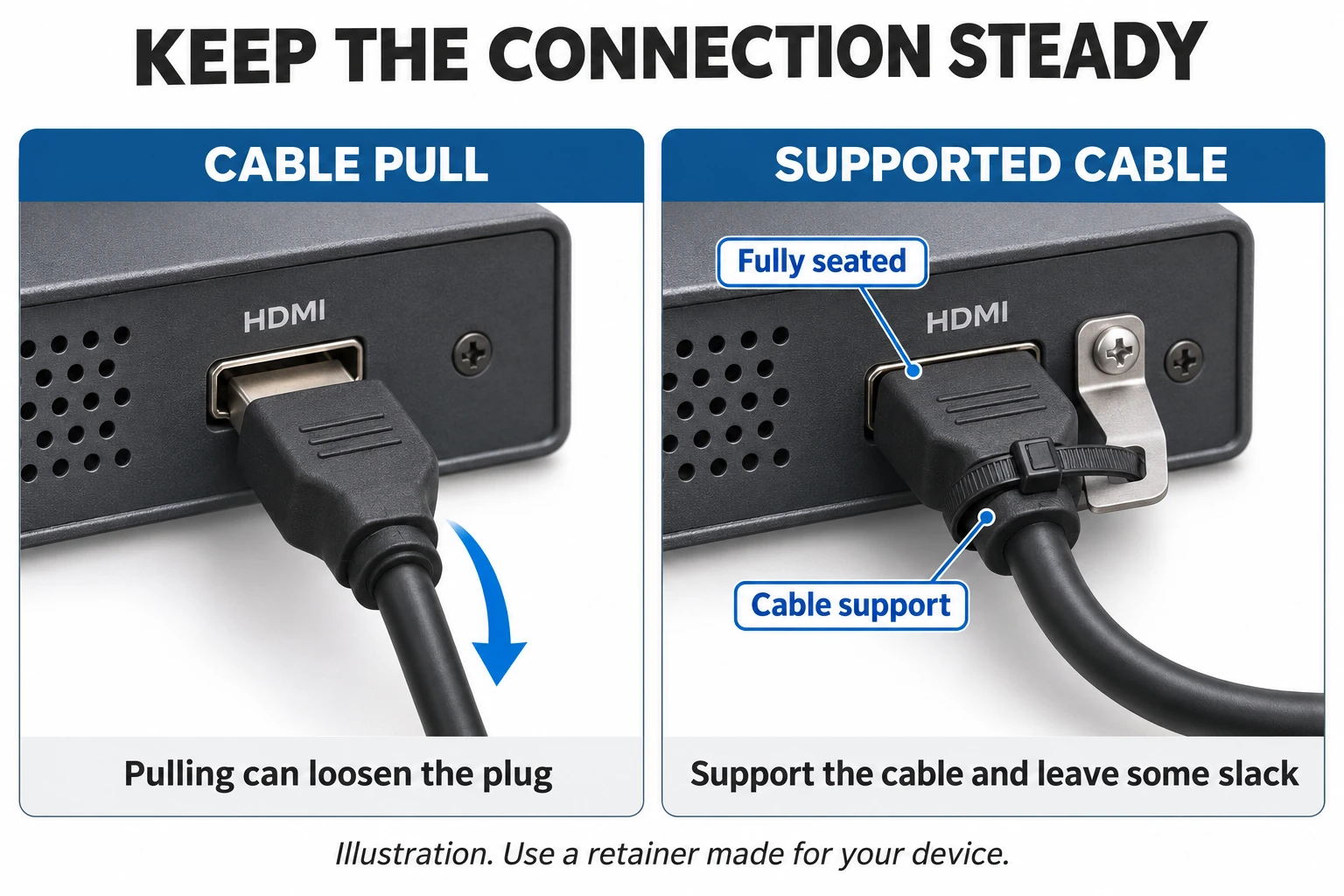
Most HDMI plugs stay in place with a snug fit. They do not have a locking button like some DisplayPort (DP) plugs. If a cable is pulled tight, hangs from the port or gets pulled when you move the screen, it can work loose. A worn plug or port can also cause trouble.
Why can a loose connection flicker at high refresh rates?
HDMI sends video through tiny electrical contacts. A plug that is not fully seated, or contacts that are worn or damaged, can make that signal unreliable. The monitor may receive errors or lose the connection. You might see colored dots, flickering or a black screen, and the sound may cut out.
At the same resolution and color settings, a higher refresh rate sends more data each second. The signal has less room for error. That is why a weak connection may work at 60Hz but fail at 144Hz or 180Hz. Higher resolution and deeper color can add to the load too.
A loose plug does not always make HDMI switch to a lower speed or refresh rate. It may simply lose the picture. As a quick test, lower the refresh rate in your display settings. If the picture becomes stable, check the cable, both ports and the supported settings. Lowering the refresh rate is a test, not a repair.
How to fix a loose HDMI cable
- Plug it back in. Turn off your PC and monitor. Unplug the HDMI cable, then push both ends straight into their ports. Turn everything back on and choose the correct HDMI input.
- Give the cable some slack. Leave enough room to raise, lower or tilt the screen without pulling on the plug. Support the cable so its weight does not pull on the port.
- Try another cable. If that fixes the problem, the old cable may be the cause. If it does not, try another HDMI port or another device.
- Use a cable lock if needed. You can buy HDMI cable locks and holders online. For example, Extron’s LockIt Plus helps hold the cable in place. Check that it fits your device before buying. A cable lock will not fix a broken port.
HDMI vs. DisplayPort: what’s the difference?
| What to check | HDMI | DisplayPort (DP) |
|---|---|---|
| Max transfer speed | HDMI 1.4: 10.2 Gbps HDMI 2.0: 18 Gbps HDMI 2.1: 48 Gbps HDMI 2.2: 96 Gbps | DP 1.2: 21.6 Gbps DP 1.3 / 1.4: 32.4 Gbps DP 2.0 / 2.1: 80 Gbps |
| How it stays in place | Most plugs use a snug fit. A separate cable lock can help. | Some full-size plugs have a lock that helps stop the cable from coming loose. |
| Common uses | PCs, monitors, TVs and game consoles. | PCs and monitors. |
| Refresh rate examples | HDMI 1.4: 1080p at 120Hz; 4K at 30Hz HDMI 2.0: 1440p at 144Hz; 4K at 60Hz HDMI 2.1: 4K at 120Hz with a suitable high-bandwidth connection HDMI 2.2: 4K at 240Hz with a 96 Gbps connection | DP 1.2: 1440p at 144Hz; 4K at 60Hz DP 1.3: 4K at 120Hz with 8-bit color DP 1.4: 4K at 120Hz with HDR using DSC DP 2.0 / 2.1: 4K at 240Hz with HDR using an 80 Gbps connection |
| Video and sound | Carries both. | Carries both. |
| How to unplug it | Release any separate cable lock, then pull the plug straight out. | If it has a locking button, press it before pulling the plug out. |
Gbps means gigabits per second. These are the maximum connection speeds for each version. The usable video data rate is lower. Actual speed depends on your devices and cable.
The refresh rates are examples, not fixed limits or a promise for every monitor. Here, 1080p means 1920 × 1080, 1440p means 2560 × 1440, and 4K means 3840 × 2160. Color depth, color format and video compression can change what fits through the connection. DSC is video compression supported by some devices. Check the supported resolution and refresh rate for each input; a version number alone does not guarantee every feature.
Not every DP cable has a lock, so check before buying. With either cable type, make sure it supports the resolution and refresh rate you want to use.
A tip for monitor distributors
Our gaming monitor lineup generally offers refresh rates of 180Hz or higher. You can also check out our OLED monitor lineup when choosing models for your next order.
For models above 180Hz used with a gaming PC, we usually recommend including a DP cable in the box. Choose one with locking plugs to help keep it from coming loose. Make sure the cable and the PC support the monitor’s resolution and refresh rate.
HDMI can also support high refresh rates on the right equipment. Check the specs for each monitor input, and keep HDMI available for customers using consoles or devices that only have HDMI.
For example, some 1440p gaming monitors support 144Hz over HDMI and 180Hz over DP. For a model with those limits, DP is the way to get the full 180Hz. This is a limit of that model’s input, not a rule for every HDMI connection.
Common questions
How do I fix a loose HDMI cable?
Plug it back in, remove any pull on the cable and try a different cable. A compatible cable lock can help. If the port is damaged, have it repaired.
Can a loose or bad HDMI cable make the picture cut out?
Yes. You may see flickering, a black screen or “No Signal.” The sound may cut out too. Check the cable first, then the selected input and connected device.
Can a loose HDMI cable cause game lag or a delayed picture?
It can make the picture cut out, which interrupts your game. A steady delay is a different issue. Check your frame rate, display settings and, for online games, your internet connection.
Will HDMI still work if the port is loose?
It may work until movement breaks the connection. If the port itself moves inside the device, have it checked. Do not force or bend the plug.
Why is the HDMI cable loose on my Xbox One, PS5 or TV?
The plug may fit poorly, the port may be worn, or the cable may be pulling on it. Try another HDMI cable. If several cables feel loose in the same port, have the port checked.
Can lightning damage an HDMI connection?
Yes. A power surge from lightning can damage connected devices. A cable lock will not fix that damage. If the problem started after a storm, have the equipment checked.
Planning a monitor order? Talk to Yanxun Display about the monitors and cables you need.