
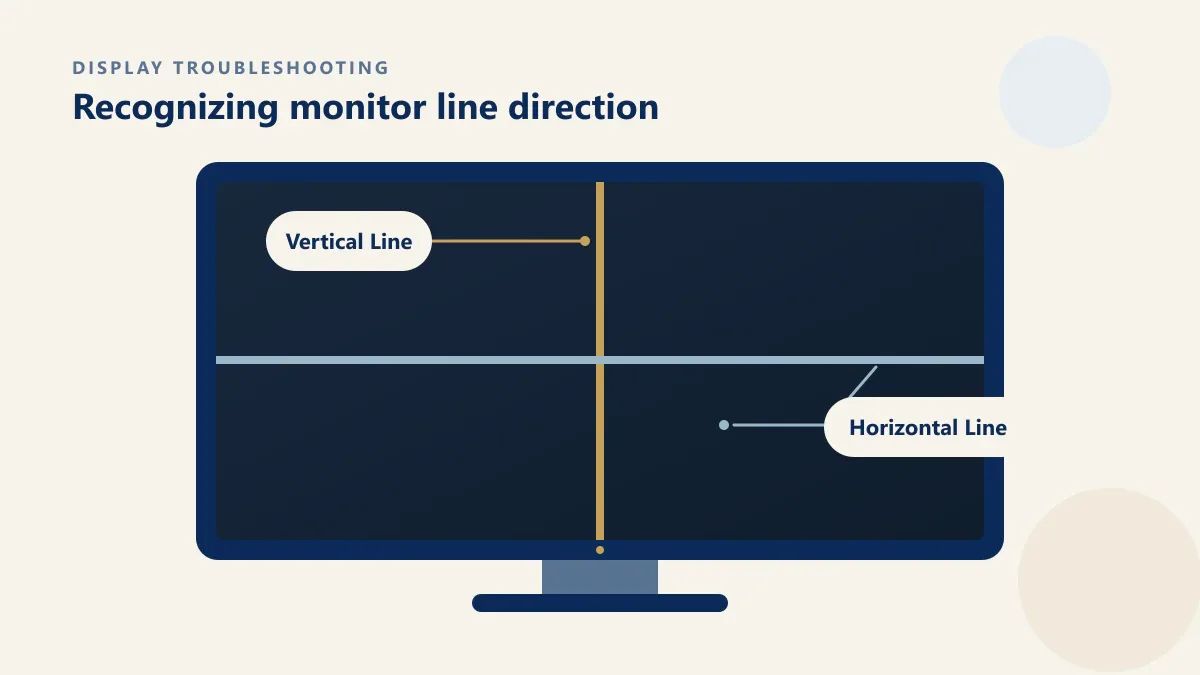
Vertical or horizontal lines on a monitor can come from several points in the display chain. A loose connection or an unsuitable refresh rate may produce lines, but so can a graphics-output problem or an issue inside the monitor. Color and direction offer clues; they do not identify a failed part by themselves.
The fastest approach is to isolate where the pattern begins. Start with the monitor’s own menu, then remove the video signal, check the cable and port, and compare another source. The sequence below moves from quick, reversible checks to evidence that may justify service.
Quick Guide: What Monitor Lines Can Mean
| What you see | What to test first |
|---|---|
| One fixed vertical line | Monitor OSD and no-signal screen |
| Multiple vertical lines | Cable, port, GPU and monitor |
| Horizontal lines | Cable, refresh rate and video output |
| Black vertical line | Solid-color screen and monitor OSD |
| Faint white line | Black and dark test backgrounds |
| Green, red or purple line | Cable, GPU and panel behavior |
| Moving or static lines | Cable, port and graphics output |
| Lines only at 144 Hz or 165 Hz | Refresh rate and cable bandwidth |
| Lines with HDMI disconnected | Monitor internal hardware |
| Small isolated dot | Check whether it is a pixel rather than a line |
The appearance of a line provides a clue, not a final diagnosis.
What Do Vertical Lines on a Computer Monitor Mean?
A vertical line means one narrow column—or several columns—is not showing the expected image consistently. The cause may sit anywhere between the computer’s rendered frame and the panel’s pixel-control circuitry. Common possibilities include poor connector contact, a cable that struggles with the selected bandwidth, a video-port or graphics-driver issue, and an internal monitor connection or column driver.
Persistence is more useful than appearance alone. A line that remains in the same place over the monitor’s menu and no-signal screen is more likely to be monitor-side. A line that appears in a screenshot when that screenshot is viewed on another device points more toward software or graphics rendering. Neither observation should be used alone to name a component.
Vertical Lines vs Horizontal Lines on a Monitor
Vertical lines
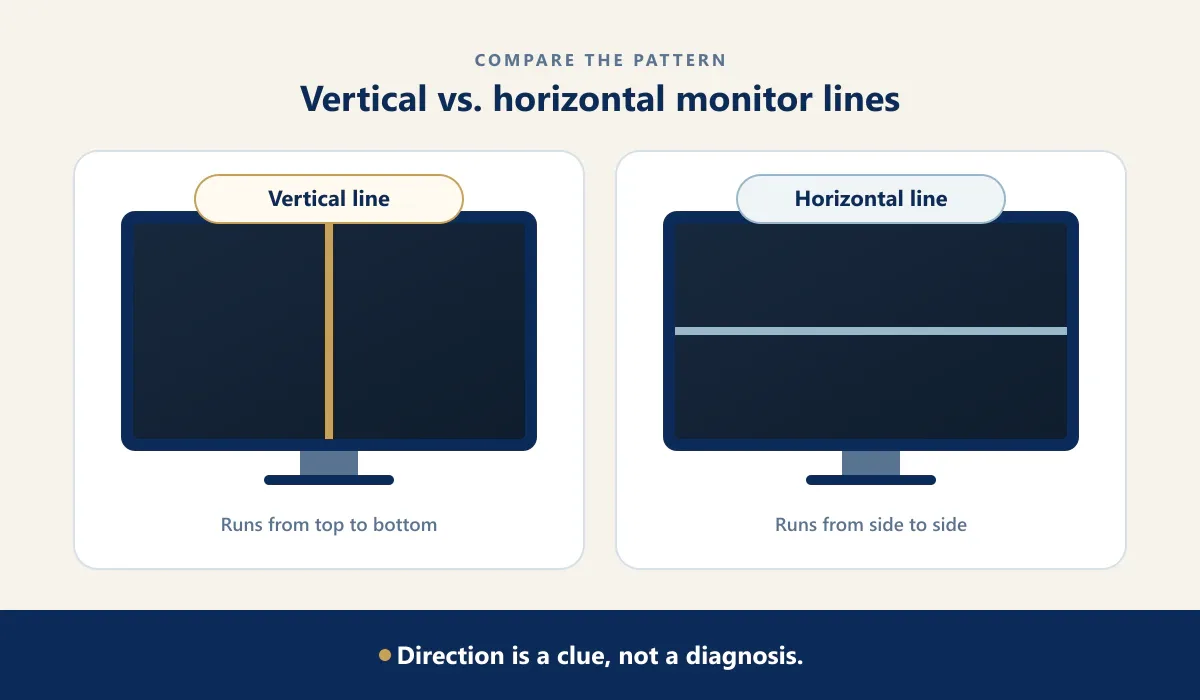
Vertical lines follow pixel columns from top to bottom. A single, perfectly fixed line across every input may indicate a column-control or internal connection issue. Several colored vertical bands can also result from corrupted signal data, so test the cable, port, and another source before concluding that the panel needs service.
Horizontal lines
Horizontal lines follow pixel rows from side to side. They may be associated with the monitor’s row-driving path, but rolling, broken, or intermittent horizontal bands can also occur when refresh timing, cable bandwidth, or video output is unstable. Direction narrows the test plan; it does not make the diagnosis certain.
What Does the Color of a Monitor Line Mean?
Before drawing a conclusion from color, compare whether the line changes with a different source, cable, refresh rate, or displayed color. A full-screen color test screen makes it easier to compare the same location on black, white, red, green, blue, and gray backgrounds.
Black vertical lines
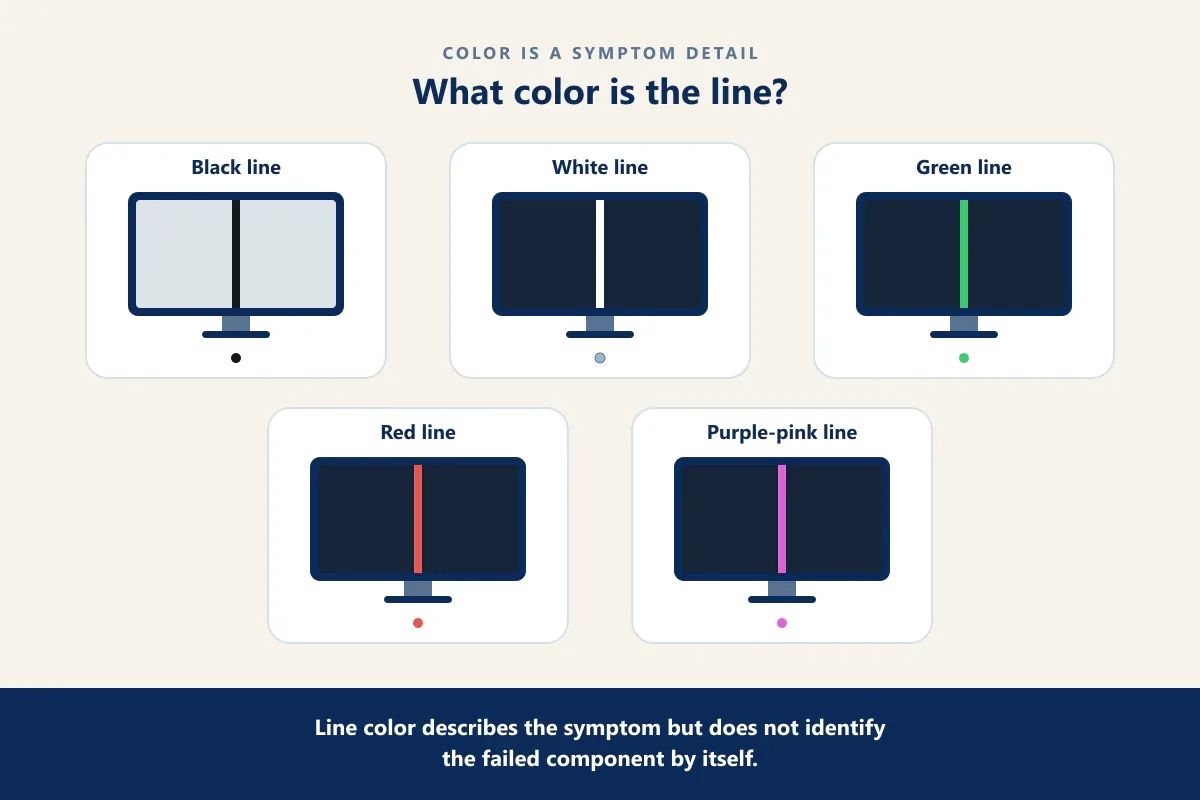
A black line can mean that a column is receiving little or no visible image data. If it stays black on red, green, blue, white, and gray screens—and also crosses the OSD—a monitor-side column problem becomes more likely. If it changes after moving or replacing the cable, the signal path deserves more attention.
White and faint white lines
A bright white line is easier to see on black; a faint white or gray line may appear only on dark backgrounds. Test several dark shades because reflections, panel uniformity, image sharpening, and source content can resemble a thin line. A fixed line across internal screens is stronger evidence than one visible in a single app.
Green, red, purple, or pink lines
Colored lines may appear when one or more color channels are missing, stuck, or corrupted. That can happen in a cable or connector, the graphics output, or the monitor’s internal data path. Purple or pink often reflects an imbalance between red, green, and blue data, but color alone cannot identify which part is responsible.
Computer Monitor Static Lines and Flickering Lines
A static line that never changes position is more consistent with a fixed row or column path, especially if it overlays the OSD. Lines that move, flash, or respond when the cable is touched gently are more consistent with an unstable connection or signal. Flickering that follows windows, games, or driver changes may involve the graphics path. Avoid repeatedly bending the connector; use a proper cable substitution instead.
Can Refresh Rate Cause Lines on a Monitor?
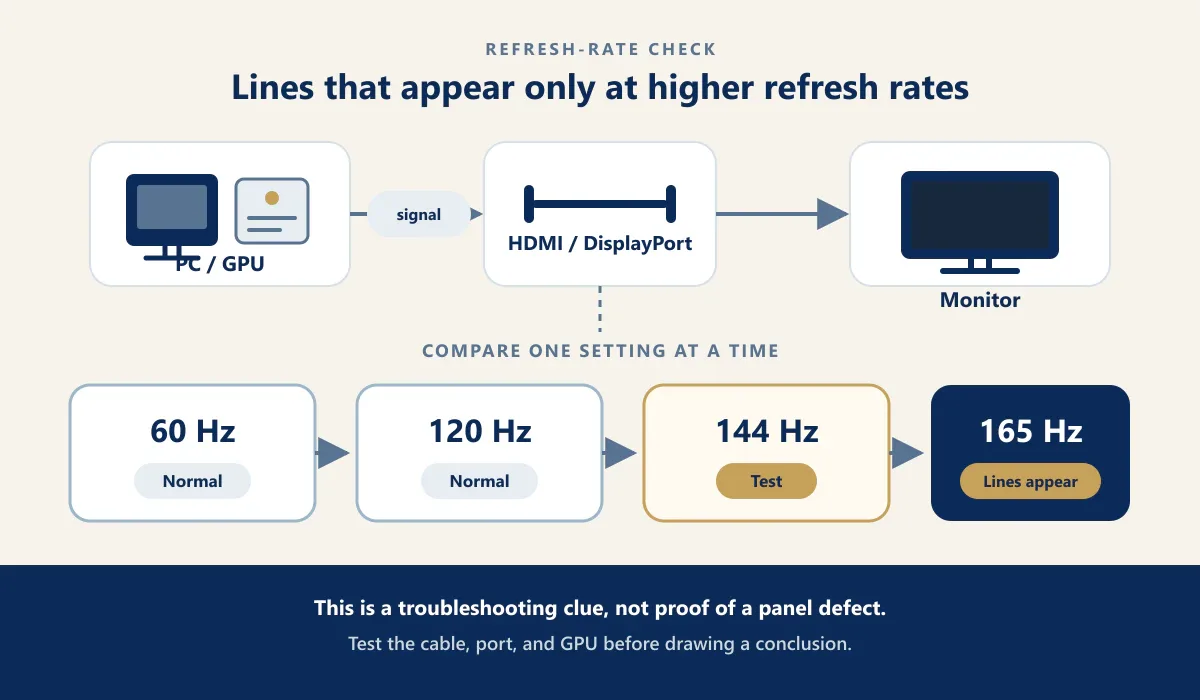
A refresh-rate choice can reveal lines when the cable, port, adapter, graphics output, or display cannot sustain the requested timing reliably. This is especially relevant when the screen is clean at 60 or 120 Hz but shows artifacts at 144, 165, or 180 Hz at the monitor’s native resolution. It does not prove that the refresh rate itself damaged anything.
Select a rate officially supported at the monitor’s native resolution, disable any custom overclock, and retest. After changing the setting, a refresh rate test can help confirm the active rate reported in the browser. If lowering the rate removes the lines, next verify cable specification, port capability, adapters, drivers, and the monitor’s supported mode.
The browser test does not change monitor settings and cannot diagnose hardware failure.
How to Fix Vertical or Horizontal Lines on a Monitor
Change one item at a time and note the result. That preserves the evidence needed to identify whether the source, signal path, setting, or monitor is involved.
Safety note: Turn off the display before inspecting or reconnecting cables. Do not open a monitor enclosure; internal components may retain dangerous voltage even after the power cord is removed. Avoid pressing, rubbing, or tapping the panel.
-
Open the monitor’s OSD
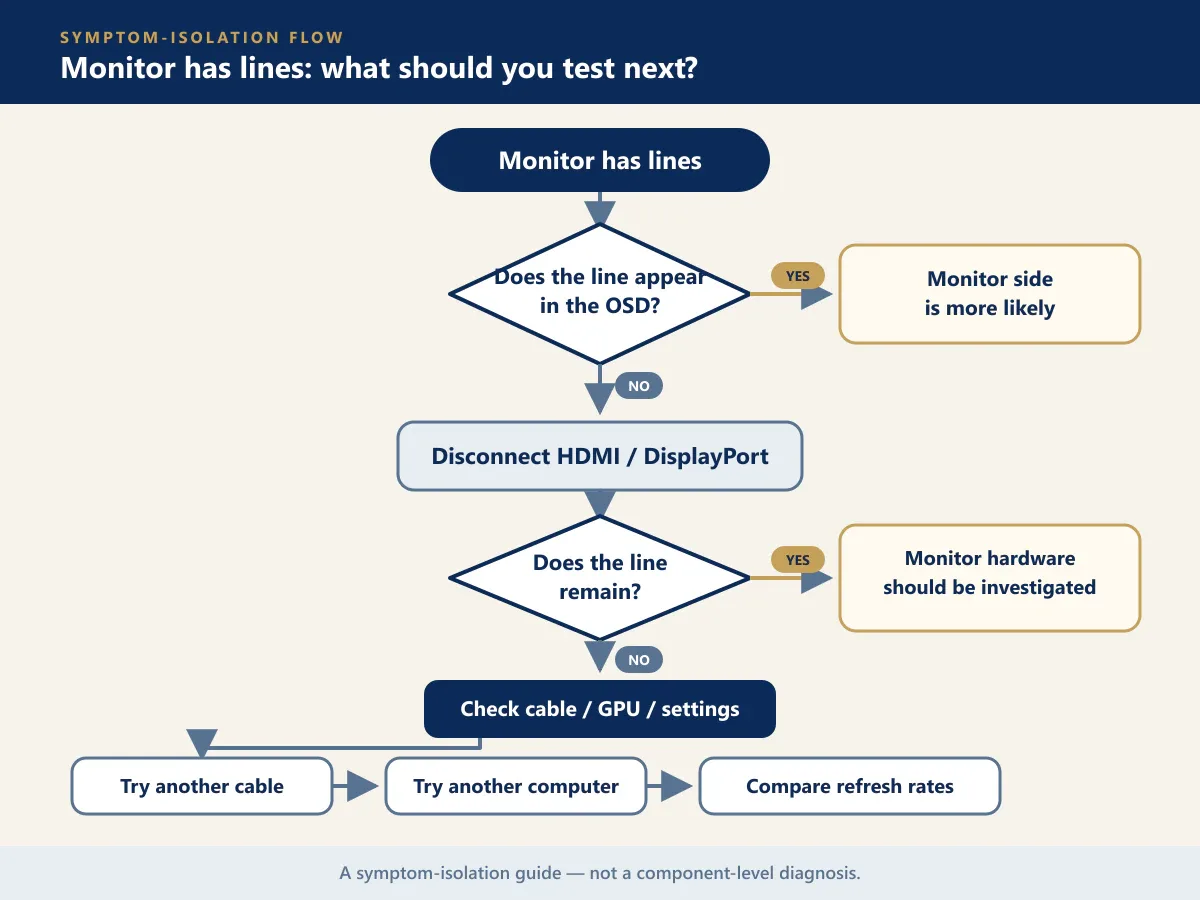
Use the monitor buttons or joystick to open its on-screen display. If a line runs through the OSD, the monitor side is more likely. If the menu remains clean while the desktop has lines, focus first on the computer, cable, and input.
-
Disconnect the video cable
Leave the monitor powered on but remove HDMI, DisplayPort, USB-C, or another video cable. Watch the no-signal screen. A line that remains is useful evidence of an internal monitor issue; a clean screen shifts attention toward the signal path.
-
Reconnect both cable ends
Turn the display off, inspect the plugs for obvious damage or debris, and seat both ends firmly. Do not force a connector. If the line changes with normal cable positioning, replace the cable instead of holding it at an angle.
-
Try a known-good cable
Use a short, undamaged cable rated for the required resolution and refresh rate. Remove docks, converters, and extension leads temporarily where practical. A successful substitution suggests the original cable or adapter path may be involved.
-
Test another video port
Move to another compatible output on the computer and input on the monitor. Select the matching input in the OSD. If only one port produces lines, that port or its specific signal path deserves further testing.
-
Restore the recommended resolution
Choose the operating system’s recommended display resolution, usually the panel’s native resolution. Remove custom timings and unusual scaling experiments while testing. Non-native scaling more often affects sharpness, but restoring defaults removes a useful variable.
-
Lower the refresh rate temporarily
Drop from 165 or 144 Hz to a supported lower rate such as 120 or 60 Hz. If the lines stop, do not assume the panel is defective; check bandwidth, cable rating, port version, adapters, and supported monitor modes.
-
Connect another computer or source
Test a laptop, desktop, or console with a compatible output. Use a known-good cable and the same monitor input, then repeat with another input if available. Lines across independent sources make a monitor-side cause more likely.
-
Display solid test colors
Display black, white, red, green, blue, and gray screens. Record which colors reveal the line and whether it stays in one position. Test at normal viewing distance and close up.
-
Decide whether it is a line or a pixel
A line extends through many adjacent pixels; a dead or stuck pixel is a tiny point. Inspect the area on several solid backgrounds. This distinction helps describe the symptom accurately for support or warranty service.
Vertical Lines on a Laptop Monitor
A laptop adds an internal display cable and lid hinge to the diagnostic path. Check whether the line appears before the operating system loads, in firmware setup, or in built-in diagnostics. Then connect an external monitor. A clean external image with a persistent line on the laptop panel makes the internal display path more likely; lines on both displays may point toward software or graphics output.
If the symptom changes with lid angle, stop repeatedly moving the lid to reproduce it, because continued flexing may worsen an intermittent connection. Internal cable and panel work often requires model-specific disassembly, so use authorized service when the device is under warranty or the repair is outside your experience.
Does a Vertical Line Mean the Monitor Panel Is Broken?
Not necessarily. Cable contact, port behavior, graphics output, drivers, custom timings, and unsupported high-refresh combinations can all produce line-like artifacts. A panel or its internal electronics becomes more likely when the same fixed line appears over the OSD or no-signal screen, survives a power cycle, and remains across multiple known-good sources and cables.
Those checks still do not identify the exact internal part. Review warranty terms or request service before opening the monitor, particularly if the line appeared without impact or liquid damage.
Monitor Line vs. Dead Pixel
A dead pixel is a single picture element that stays dark; a stuck pixel or subpixel may remain red, green, blue, or bright. A monitor line is a continuous row or column involving many pixels. At high pixel density, a one-pixel-wide line can look like a hair, but it still spans a meaningful distance.
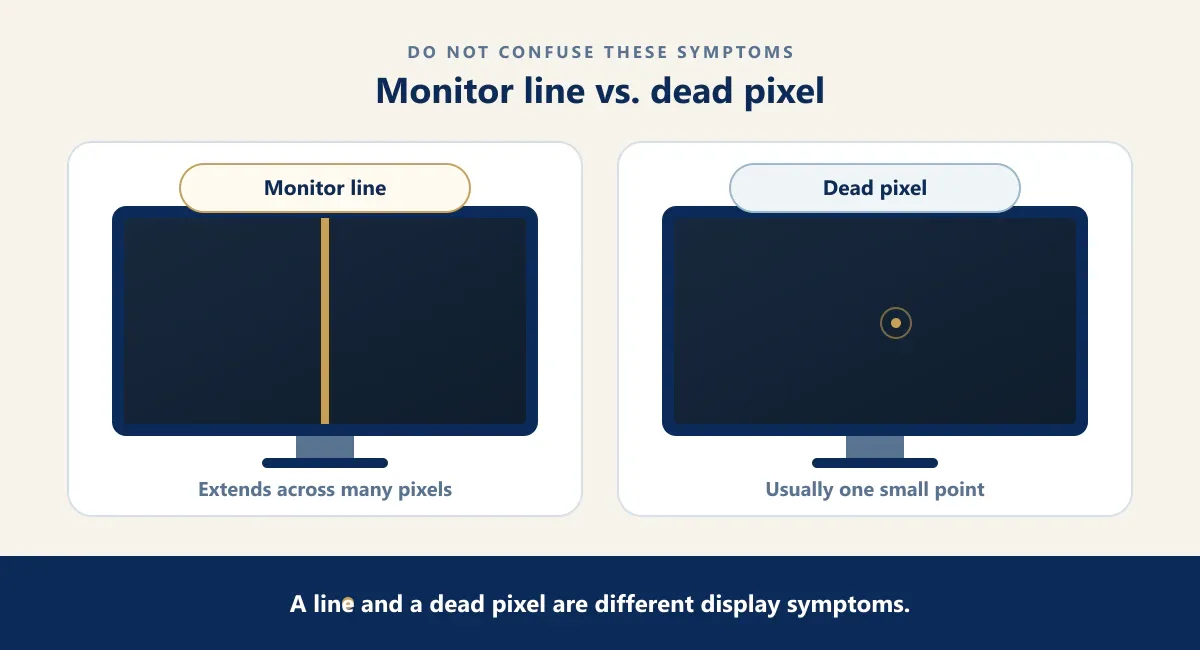
Use a dead pixel test on several solid colors, and avoid confusing dust, a scratch, app borders, crosshairs, or a cursor trail with a pixel fault. If an isolated point remains in the same place, record its position and appearance for the manufacturer. Avoid pressure-based “fixes,” which can damage the panel.
Frequently Asked Questions
Why does my computer monitor have vertical lines?
Possible causes include a loose or inadequate cable, a port or graphics-output issue, an unsupported display mode, or an internal monitor connection or column path. OSD and no-signal tests help separate monitor-side behavior from the incoming signal.
Why is there a black vertical line on my monitor?
A black vertical line may represent missing image data in a pixel column, but the interruption can occur in the signal path or inside the monitor. Test solid colors, the OSD, another cable, and another source.
What causes horizontal lines on a monitor?
Horizontal lines may relate to refresh timing, cable bandwidth, video output, or the monitor’s row-driving path. Whether they move, flicker, cross the OSD, or persist with the cable disconnected provides better evidence than direction alone.
Why does my LCD monitor have white lines?
White lines may result from bright or missing pixel data, signal corruption, or an internal row or column issue. Compare dark backgrounds, built-in menus, cables, inputs, and sources before considering service.
Why are there green lines on my monitor?
Green lines may indicate incorrect color-channel data from a cable, connector, graphics output, or internal panel path. Their color is a clue, not proof of one failed component.
Why does my monitor have purple or pink lines?
Purple or pink lines can appear when RGB color data is imbalanced or corrupted. Reseat or replace the cable, try another port and source, and check whether the lines cross the monitor’s own menu.
Can a bad HDMI cable cause lines on a monitor?
Yes. A damaged, poorly seated, or insufficiently rated HDMI cable can contribute to lines or flashing, especially at high bandwidth. Confirm by substituting a known-good cable rated for the required display mode.
Can a high refresh rate cause monitor lines?
It can reveal signal or timing instability. If lines appear only at a higher rate, verify that the resolution-rate combination, cable, port, adapter, graphics output, and monitor all support that mode.
Can an online monitor test repair vertical lines?
An online test can expose and document a line; it generally cannot repair a cable, connector, driver circuit, or panel. Treat test patterns as diagnostic tools, and be cautious of flashing-pattern “fix” claims.
Should I replace a monitor with vertical lines?
Replace or service it only after eliminating cables, ports, settings, and sources. If fixed lines remain on the OSD and no-signal screen, compare warranty coverage and repair cost with the monitor’s age and value.