
If you need to check which resolutions, refresh rates and display capabilities a monitor reports to a computer, the first step is to obtain its EDID data.
EDID stands for Extended Display Identification Data. It is a structured block of data that a monitor supplies to a connected computer, graphics card, game console or other video source. Depending on the EDID version and extension blocks, it can describe the display identity, preferred timing, supported modes, physical dimensions, color information and additional HDMI or DisplayPort capabilities.
You can export monitor EDID as a binary file or copy it as hexadecimal text. Once you have the data, open the Monitor EDID Reader and Decoder to inspect it locally in your browser.
This guide explains practical ways to get EDID from a monitor on Windows, Linux and macOS, as well as the limits of what EDID can prove.
What Information Can You Read From Monitor EDID?
Depending on the data supplied by the display, an EDID file may contain:
- Manufacturer identifier and product code
- Serial information and manufacture date
- EDID version and revision
- Preferred resolution and timing
- Other supported resolutions and refresh rates
- Detailed display timings
- Physical screen dimensions
- RGB chromaticity coordinates and gamma
- CTA or DisplayID extension information
- Declared HDMI video, audio, colorimetry or HDR metadata
EDID reports what the display or another device in the signal chain declares to the source. It does not independently measure the panel. For example, EDID data cannot prove that a monitor physically covers a specific percentage of sRGB or Display P3. Accurate color-gamut verification requires a colorimeter or spectrophotometer.
Before You Export the EDID
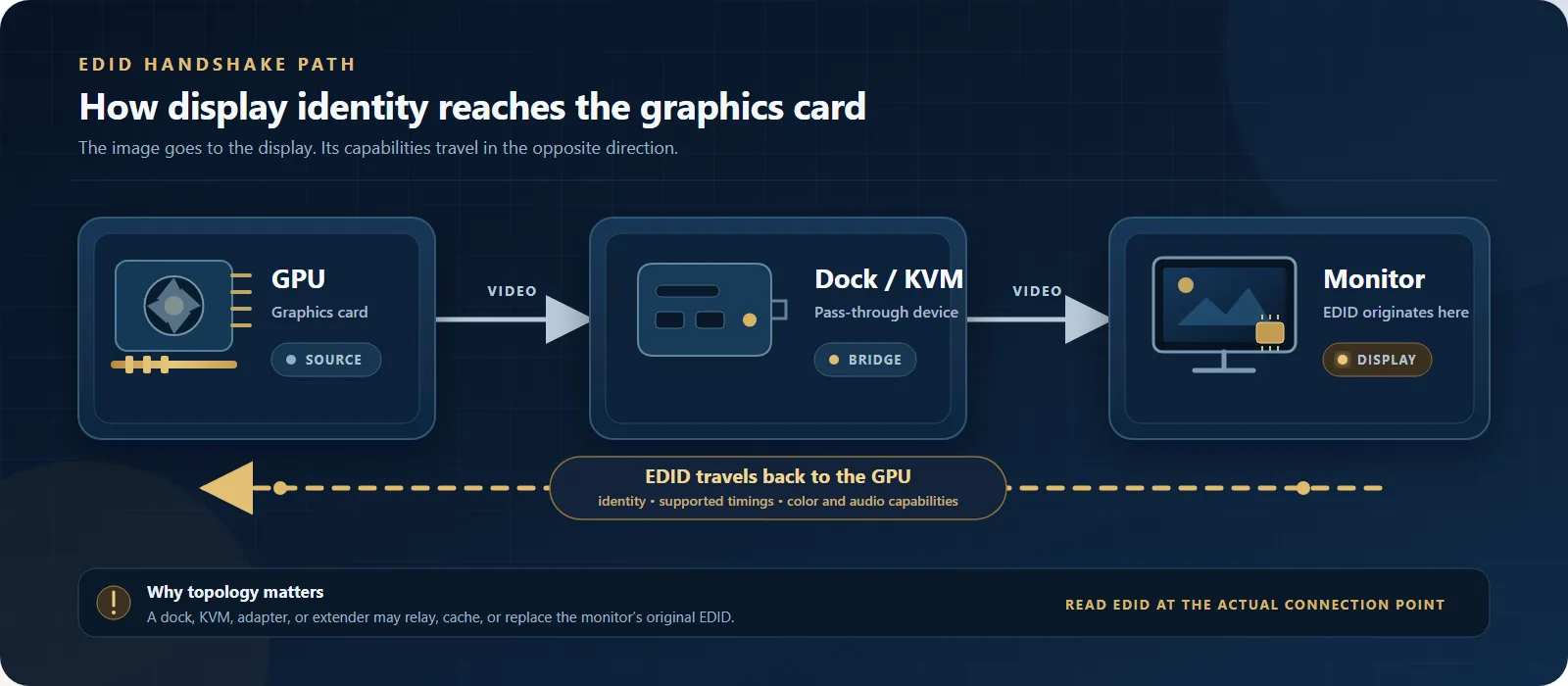
For the clearest result, connect the monitor directly to the computer when practical. A dock, KVM switch, HDMI splitter, AV receiver or adapter can pass through, store, combine or replace EDID data. If you have several monitors connected, disconnecting unnecessary displays can also make the correct EDID easier to identify.
| Platform | Common method | Typical output |
|---|---|---|
| Windows | Read active display blocks through WmiMonitorDescriptorMethods | BIN file |
| Linux | Copy the active DRM connector's EDID file | BIN file |
| macOS | Inspect the I/O Registry when raw EDID is exposed | HEX text |
How to Get EDID From a Monitor on Windows
Windows exposes raw E-EDID 1.x blocks for active monitors through the WmiMonitorDescriptorMethods class. PowerShell can call this Windows interface and save the returned 128-byte blocks as one binary EDID file per active display.
Export Windows EDID With PowerShell
Open PowerShell and run the following script:
function Get-EdidBlock {
    param(
        [Parameter(Mandatory)] $Monitor,
        [Parameter(Mandatory)] [ValidateRange(0, 255)] [int] $BlockId
    )

    $invokeParams = @{
        InputObject = $Monitor
        MethodName = 'WmiGetMonitorRawEEdidV1Block'
        Arguments = @{ BlockId = [byte]$BlockId }
        ErrorAction = 'Stop'
    }

    try {
        $result = Invoke-CimMethod @invokeParams
    }
    catch {
        throw ('Could not read EDID block {0}: {1}' -f $BlockId, $_.Exception.Message)
    }

    if ($null -eq $result) {
        throw ('EDID block {0} returned no result.' -f $BlockId)
    }

    $returnValue = $result.ReturnValue
    if ($null -ne $returnValue) {
        if ($returnValue -is [bool]) {
            $failed = -not $returnValue
        }
        else {
            $failed = [uint64]$returnValue -ne 0
        }

        if ($failed) {
            throw ('EDID block {0} failed (ReturnValue={1}).' -f $BlockId, $returnValue)
        }
    }

    [byte[]]$content = $result.BlockContent
    if ($content.Length -ne 128) {
        throw ('EDID block {0} returned {1} bytes instead of 128.' -f $BlockId, $content.Length)
    }

    Write-Host ('  Block {0}: OK, 128 bytes' -f $BlockId)
    return ,$content
}

$desktop = [Environment]::GetFolderPath('Desktop')
if ([string]::IsNullOrWhiteSpace($desktop) -or -not (Test-Path -LiteralPath $desktop -PathType Container)) {
    throw ('Desktop folder was not found: {0}' -f $desktop)
}

Write-Host ('Output folder: {0}' -f $desktop)

try {
    $monitors = @(Get-CimInstance -Namespace 'root\wmi' -ClassName 'WmiMonitorDescriptorMethods' -ErrorAction Stop | Where-Object { $_.Active })
}
catch {
    throw ('Could not query active monitors: {0}' -f $_.Exception.Message)
}

if ($monitors.Count -eq 0) {
    throw 'No active monitor exposed EDID through WmiMonitorDescriptorMethods.'
}

Write-Host ('Active monitors found: {0}' -f $monitors.Count)
$exported = 0

for ($i = 0; $i -lt $monitors.Count; $i++) {
    $monitor = $monitors[$i]
    $number = $i + 1
    Write-Host ''
    Write-Host ('Monitor {0}: {1}' -f $number, $monitor.InstanceName)

    try {
        [byte[]]$baseBlock = Get-EdidBlock -Monitor $monitor -BlockId 0
        $allBytes = [System.Collections.Generic.List[byte]]::new()
        $allBytes.AddRange($baseBlock)

        $extensionCount = [int]$baseBlock[126]
        Write-Host ('  Extension blocks declared: {0}' -f $extensionCount)

        for ($block = 1; $block -le $extensionCount; $block++) {
            [byte[]]$extensionBlock = Get-EdidBlock -Monitor $monitor -BlockId $block
            $allBytes.AddRange($extensionBlock)
        }

        $file = Join-Path $desktop ('monitor-edid-{0}.bin' -f $number)
        if (Test-Path -LiteralPath $file) {
            Write-Warning ('Overwriting existing file: {0}' -f $file)
        }

        [System.IO.File]::WriteAllBytes($file, $allBytes.ToArray())
        $savedFile = Get-Item -LiteralPath $file -ErrorAction Stop

        if ($savedFile.Length -ne $allBytes.Count) {
            throw ('Saved file size is {0} bytes; expected {1}.' -f $savedFile.Length, $allBytes.Count)
        }

        Write-Host ('Exported: {0} ({1} bytes)' -f $savedFile.FullName, $savedFile.Length) -ForegroundColor Green
        $exported++
    }
    catch {
        Write-Warning ('Monitor {0} was not exported: {1}' -f $number, $_.Exception.Message)
    }
}

if ($exported -eq 0) {
    throw 'No EDID files were exported. Review the messages above.'
}

Write-Host ''
Write-Host ('Done. Exported {0} EDID file(s).' -f $exported) -ForegroundColor Green
If Windows exposes readable EDID blocks, the script creates files such as monitor-edid-1.bin and monitor-edid-2.bin on the actual desktop folder. When more than one file appears, decode each one and compare the manufacturer, product code, serial information and preferred timing to identify the intended display.
The script accepts both return-value formats seen through this Windows interface: a Boolean True result and a numeric 0 success code. It also prints the output folder, active-monitor count, EDID block status and final file size so that a failed export does not end silently.
If the exported file is not visible on the Desktop, check whether OneDrive Desktop backup or synchronization is enabled. The file may appear in the OneDrive-managed Desktop folder; searching for monitor-edid-1.bin can help locate it.
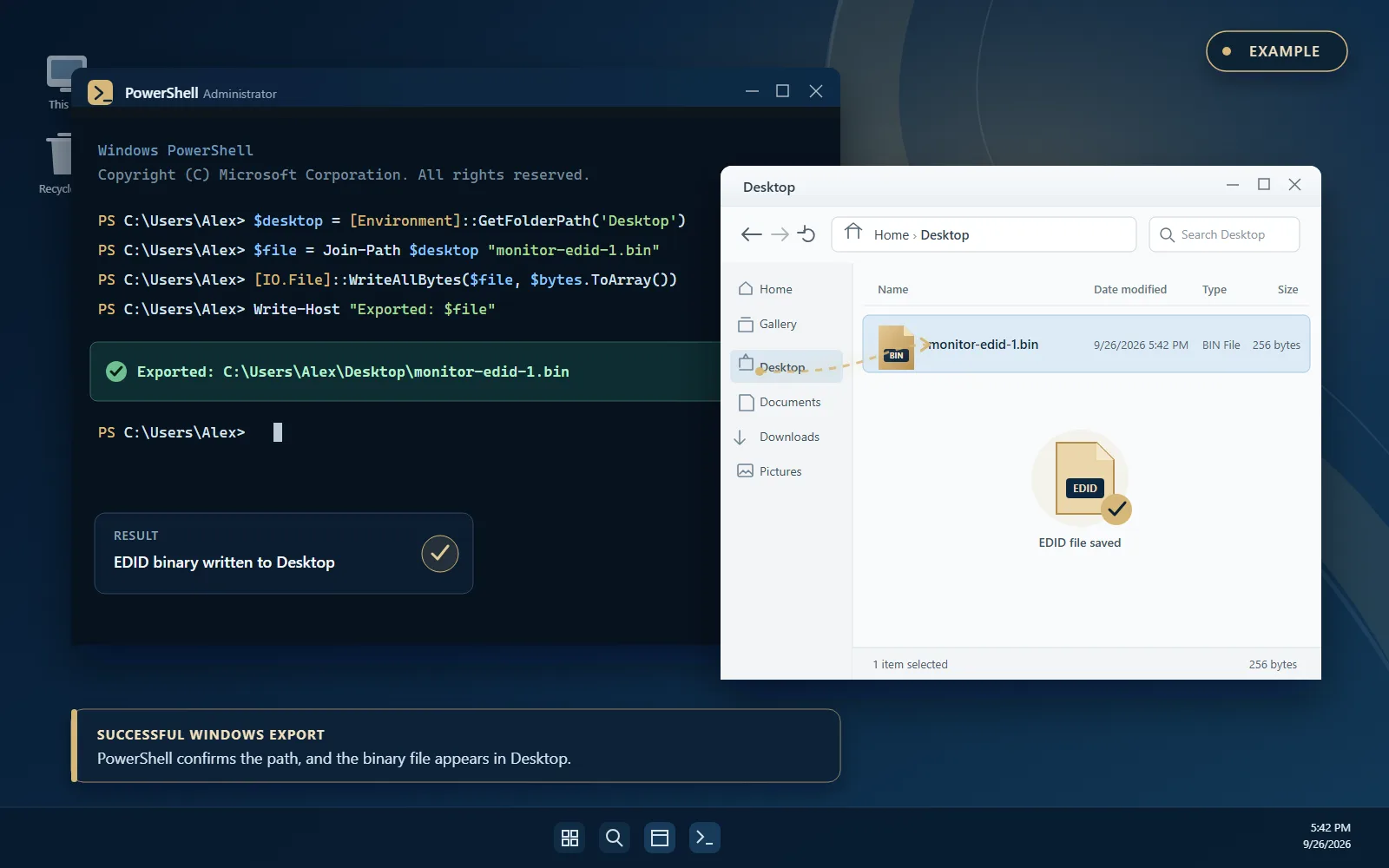
Important: This method returns what Windows and the display driver expose for an active monitor. An INF override, dock, KVM or another part of the signal chain can still affect the result, so it is not guaranteed to be a direct EEPROM dump.
Where Windows Stores Monitor EDID
Windows also maintains display instance records under the following Registry path:
HKEY_LOCAL_MACHINE\SYSTEM\CurrentControlSet\Enum\DISPLAYIndividual monitor instances may contain a Device Parameters section with an EDID binary value. However, this Registry tree is an operating-system implementation detail and can contain historical, disconnected or overridden records. Prefer the active-monitor WMI method above, and do not modify Registry values merely to decode EDID.
How to Get EDID From a Monitor on Linux
Linux commonly exposes EDID data through Direct Rendering Manager (DRM) connector entries. Open a terminal and list the available EDID files:
ls /sys/class/drm/*/edidDepending on the GPU, driver and connection, you may see paths such as:
/sys/class/drm/card0-HDMI-A-1/edid
/sys/class/drm/card0-DP-1/edid
To list connected connectors that currently expose non-empty EDID data, you can use:
for connector in /sys/class/drm/card*-*; do
  if [ "$(cat "$connector/status" 2>/dev/null)" = "connected" ] && [ -s "$connector/edid" ]; then
    echo "$connector/edid"
  fi
done
Copy the EDID from the active connector to a file in your current directory:
cat /sys/class/drm/card0-HDMI-A-1/edid > monitor-edid.binReplace the example connector name with the one used by your system. Some connector entries can exist while disconnected and may contain no data, so confirm that the exported file is not empty before decoding it.
How to Read Monitor EDID on macOS
macOS can expose display identification data through the I/O Registry on some systems. Open Terminal and try:
ioreg -lw0 | grep -i IODisplayEDIDWhen the property is available, the output may contain a hexadecimal value similar to:
<00ffffffffffff00...>Copy the hexadecimal characters between the angle brackets and paste them into the EDID reader. Availability varies by Mac model, connection path and macOS version. If this property is absent, macOS system information may still show general display details, but that is not necessarily a raw EDID export. A specialist display utility may be required.
How to Decode the EDID File
After exporting the EDID, you do not need to interpret every byte manually. Open the Yanxun Display Monitor EDID Reader and Decoder and then:
- Upload the BIN, DAT, TXT or HEX file, or paste the raw hexadecimal data.
- Select Decode EDID.
- Review the monitor identity, preferred timing, supported modes and extension blocks.
- Compare the decoded result with the monitor specification and your operating-system display settings.
The decoder processes the file locally in the browser. The EDID is not uploaded to the server.
What Does "HDMI EDID" Mean?
"HDMI EDID" is a common name for the display identification information an HDMI source reads from the device at the other end of the display chain. It is not a separate EDID format. HDMI connections commonly use CTA extension and vendor-specific data blocks to declare relevant video, audio and other features. The source can use those declarations to decide which modes to offer.
The device supplying the EDID is not always the monitor. A KVM, HDMI splitter, AV receiver, dock or adapter can sometimes pass through, cache or replace the EDID. This is one reason the available resolution or refresh-rate list may change when the same monitor is connected through a different device.
Why Is My Monitor Refresh Rate Missing From EDID?
Suppose a 180 Hz gaming monitor only offers 144 Hz or 60 Hz in the operating-system settings. EDID is one useful place to investigate. If an expected timing is missing, invalid or replaced by an intermediary device, the graphics system may not offer that mode.
EDID is not the only possible cause. Refresh-rate availability may also depend on:
- HDMI or DisplayPort link bandwidth
- The graphics card and its output port
- The cable, USB-C dock, KVM, splitter or adapter
- Monitor firmware and OSD settings
- GPU drivers and operating-system display settings
Use EDID as one diagnostic input rather than proof that every declared mode will work through the complete signal path. You can also run the Monitor Refresh Rate Test to estimate the browser's current presentation rate.
Common Questions About Monitor EDID
Can a Website Download EDID Directly From My Monitor?
Normally, no. A regular webpage using standard Web APIs, without a browser extension or local helper, does not receive the raw EDID from an HDMI or DisplayPort connection. An online EDID reader therefore requires you to export the EDID through the operating system or another display utility, and then upload or paste the data for local decoding.
Can EDID Confirm That a Monitor Supports HDMI 2.1?
Not reliably on its own. CTA and HDMI-related extension blocks can contain useful information about video formats and related capabilities, but one timing or bandwidth field does not prove the complete HDMI implementation. A decoder should report the fields that are present rather than guessing an HDMI version.
Can EDID Show a Monitor's Real Color Gamut?
EDID may declare chromaticity coordinates, white-point information, gamma and colorimetry flags. These values describe metadata reported by the display; they are not a physical measurement of the panel. Verifying actual sRGB, Display P3 or Adobe RGB coverage requires a calibrated colorimeter, spectroradiometer or other suitable display-measurement hardware.
Why Do I See Several EDID Files?
The operating system may retain records for several connected or previously connected displays. Multi-monitor setups can also produce one record per active display path. Decode the files and compare their identification and timing fields, or temporarily disconnect other monitors and export again.
Why EDID Verification Matters for OEM Monitor Projects
For an OEM monitor project, EDID settings influence how the finished display identifies itself and which modes a source is likely to offer. The manufacturer identifier, product name, preferred timing, extension blocks and interface declarations should be checked on a pre-production sample and kept consistent during production.
Learn more about OEM monitor configuration and customization, including display specifications, firmware settings and project requirements.
Final Step: Check Your Monitor EDID
Once you have exported a BIN file or copied the EDID hexadecimal data, open the Monitor EDID Reader and Decoder. The decoded result can help you inspect monitor identification, preferred timings, supported resolutions, refresh rates, HDMI-related declarations, color metadata and extension blocks without manually translating the raw bytes.